 5948089cd4
* onelogin instructions and link update

* add onelogin to readme

* update help instructions

* code readability

* auth method to POST

* sidebar ordering

* resolve review comments

* shell -> ruby
title, sidebar_position
| title | sidebar_position |
|---|---|
| Authenticate | 3 |
Firezone can be configured to require authentication before users can generate or download device configuration files. Optionally, periodic re-authentication can also be required for users to maintain their VPN session.

By default, Firezone uses local email/password authentication, but can also support integration with any generic OpenID Connect (OIDC) identity provider. This allows users to sign in to Firezone using their credentials from Okta, Google, Azure AD, or your own custom identity provider.
Integrating A Generic OIDC Provider
The example below details the config settings required by Firezone to enable SSO
through an OIDC provider. The configuration file can be found at
/etc/firezone/firezone.rb. To pick up changes, run firezone-ctl reconfigure
and firezone-ctl restart to update the application.
# This is an example using Google and Okta as an SSO identity provider.
# Multiple OIDC configs can be added to the same Firezone instance.

# Firezone can disable a user's VPN if there's any error detected trying
# to refresh their access_token. This is verified to work for Google, Okta, and
# Azure SSO and is used to automatically disconnect a user's VPN if they're removed
# from the OIDC provider. Leave this disabled if your OIDC provider
# has issues refreshing access tokens as it could unexpectedly interrupt a
# user's VPN session.
default['firezone']['authentication']['disable_vpn_on_oidc_error'] = false

default['firezone']['authentication']['oidc'] = {
  google: {
    discovery_document_uri: "https://accounts.google.com/.well-known/openid-configuration",
    client_id: "<GOOGLE_CLIENT_ID>",
    client_secret: "<GOOGLE_CLIENT_SECRET>",
    redirect_uri: "https://firezone.example.com/auth/oidc/google/callback/",
    response_type: "code",
    scope: "openid email profile",
    label: "Google"
  },
  okta: {
    discovery_document_uri: "https://<OKTA_DOMAIN>/.well-known/openid-configuration",
    client_id: "<OKTA_CLIENT_ID>",
    client_secret: "<OKTA_CLIENT_SECRET>",
    redirect_uri: "https://firezone.example.com/auth/oidc/okta/callback/",
    response_type: "code",
    scope: "openid email profile offline_access",
    label: "Okta"
  }
}
The following config settings are required for the integration:
discovery_document_uri: The OpenID Connect provider configuration URI which returns a JSON document used to construct subsequent requests to this OIDC provider.client_id: The client ID of the application.client_secret: The client secret of the application.redirect_uri: Instructs OIDC provider where to redirect after authentication. This should be your FirezoneEXTERNAL_URL + /auth/oidc/<provider_key>/callback/(e.g.https://firezone.example.com/auth/oidc/google/callback/).response_type: Set tocode.scope: OIDC scopes to obtain from your OIDC provider. This should be set toopenid email profileoropenid email profile offline_accessdepending on the provider.label: The button label text that shows up on your Firezone login screen.
Pretty URLs
For each OIDC provider a corresponding pretty URL is created for redirecting to the configured provider's sign-in URL. For the example OIDC config above, the URLs are:
https://firezone.example.com/auth/oidc/googlehttps://firezone.example.com/auth/oidc/okta
Common Providers
import DocCardList from '@theme/DocCardList';
import {useCurrentSidebarCategory} from '@docusaurus/theme-common';

We've included instructions on how to set up Firezone with several popular
identity providers:

<DocCardList items={useCurrentSidebarCategory().items}/>
If your identity provider is not listed above, but has a generic OIDC connector, please consult their documentation to find instructions on obtaining the config settings required.
Open a Github Issue to request documentation or submit a pull request to add documentation for your provider. If you require assistance in setting up your OIDC provider, please join the Firezone Slack group.
Enforce Periodic Re-authentication
Periodic re-authentication can be enforced by changing the setting in
settings/security. This can be used to ensure a user must sign in to Firezone
periodically in order to maintain their VPN session.
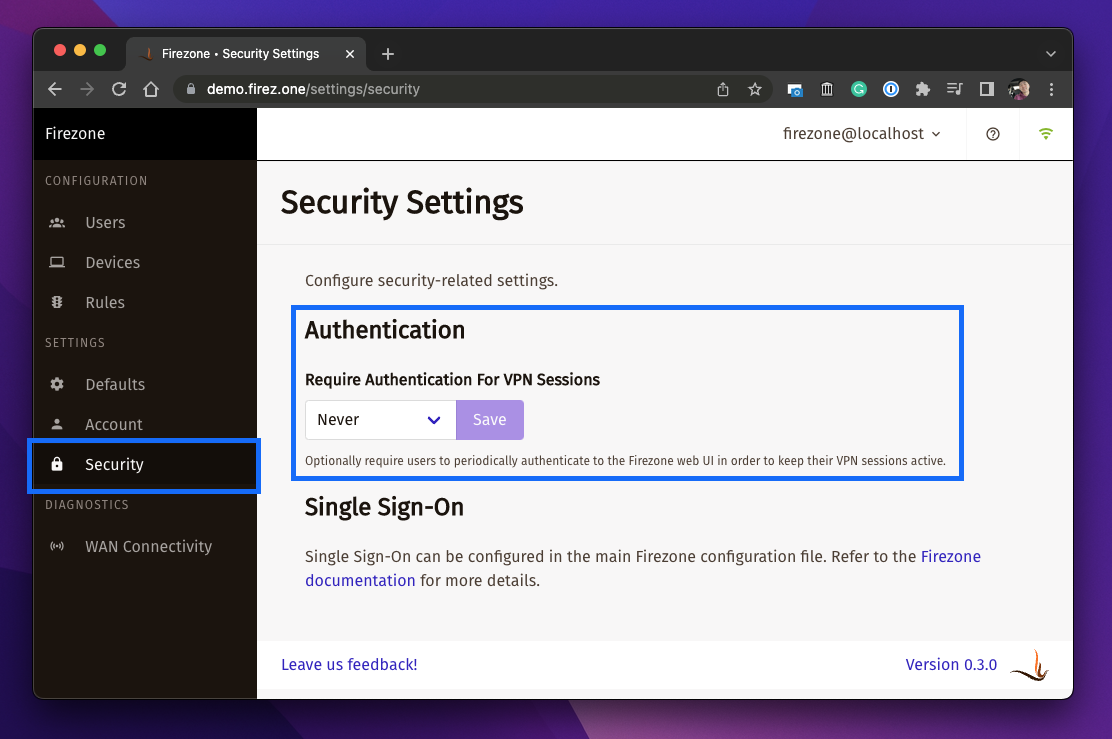
You can set the session length to a minimum of 1 hour and maximum of 90 days. Setting this to Never disables this setting, allowing VPN sessions indefinitely. This is the default.
Re-authentication
To re-authenticate an expired VPN session, a user will need to turn off their VPN session and sign in to the Firezone portal (URL specified during deployment ).
See detailed Client Instructions on how to re-authenticate your session here.
VPN Connection Status
A user's connection status is shown on the Users page under the table column
VPN Connection. The connection statuses are:
- ENABLED - The connection is enabled.
- DISABLED - The connection is disabled by an administrator or OIDC refresh failure.
- EXPIRED - The connection is disabled due to authentication expiration or a user has not signed in for the first time.