27 KiB
uCore


uCore is an OCI image of Fedora CoreOS with "batteries included". More specifically, it's an opinionated, custom CoreOS image, built daily with some common tools added in. The idea is to make a lightweight server image including commonly used services or the building blocks to host them.
Please take a look at the included modifications, and help us improve uCore if the project interests you.
Table of Contents
- Announcements
- Features
- Installation
- Tips and Tricks
- DIY
- Metrics
Announcements
2025.06.12 - uCore Build Streamlining
In general, the Universal Blue project has been working to streamline various aspects of our builds. In several areas this means we've cut back on images which do not have significant use, or otherwise found ways to build fewer images.
For uCore, this means we are dropping builds of fedora-coreos images and reducing number of ucore* images by
including ZFS in all ucore* images both nvidia and non-nvidia.
Existing tag structure for ZFS specific images will contine to work. The difference is that users running any non-ZFS image, ZFS will be available on your system after it next updates.
The team is committed to building and maintaing uCore. For questions about about recent project direction, please see our discourse post, uCore: Streamlining (not retiring).
2025.05.14 - uCore update to Fedora 42
As of today, Fedora CoreOS upstream has updated to kernel 6.14.3 and uCore has unpinned and is building on F42.
2025.04.30 - uCore delaying Fedora 42 update
As of today, Fedora CoreOS upstream has updated to Fedora 42 as a base, however it uses kernel 6.14.0 which our team has agreed, we don't want to ship. As of April 30, this means uCore has been in an inbetween state. We have some hacks in place to pin our builds to the last F41 kernel/release 6.13.8/41.20250331.3.0. This also means that rebase from F42 of Fedora CoreOS to F41 of uCore will fail. So in the meantime, if you are attempting to install, use the following installer: https://builds.coreos.fedoraproject.org/prod/streams/stable/builds/41.20250331.3.0/x86_64/fedora-coreos-41.20250331.3.0-live.x86_64.iso
2024.11.12 - uCore has updated to Fedora 41
As of today our upstream Fedora CoreOS stable image updated to Fedora 41 under the hood, so expect a lot of package updates.
2024.11.12 - uCore stable has pinned to kernel version 6.11.3
Kernel version 6.11.3 was the previous stable update's kernel, and despite the update to Fedora 41, we've stuck with 6.11.3 rather than updating to 6.11.5 from upstream.
This is due to a kernel bug in versions 6.11.4/6.11.5 which breaks tailscale status reporting. As many users of uCore do use tailscale, we've decided to be extra cautious and hold back the kernel, even though the rest of stable updated as usual.
We expect the next update of Fedora CoreOS to be on 6.11.6 per the current state of the testing stream. So uCore will follow when that update occurs.
Features
The uCore project builds three images, optionally with nivida drivers.
The image names are:
The tag matrix includes combinations of the following:
stable- images based on Fedora CoreOS stable stream including zfs driver and toolstesting- images based on Fedora CoreOS testing stream including zfs driver and toolsnvidia- images which include nvidia driver and container runtime
Images
ucore-minimal
Suitable for running containerized workloads on either bare metal or virtual machines, this image tries to stay lightweight but functional.
- Starts with a Fedora CoreOS image
- Adds the following:
- bootc (new way to update container native systems)
- cockpit (podman container and system management)
- firewalld
- guest VM agents (
qemu-guest-agentandopen-vm-tools)) - docker-buildx and docker-compose (versions matched to moby release) docker(moby-engine) is pre-installed in CoreOS
- podman-compose podman is pre-installed in CoreOS
- tailscale and wireguard-tools
- tmux
- udev rules enabling full functionality on some Realtek 2.5Gbit USB Ethernet devices
- ZFS driver - latest driver (currently pinned to 2.2.x series) - see below for details
pvis installed with zfs as a complementary tool
- Optional nvidia versions add:
- nvidia driver - latest driver built from negativo17's akmod package
- nvidia-container-toolkit - latest toolkit which supports both root and rootless podman containers and CDI
- nvidia container selinux policy - allows using
--security-opt label=type:nvidia_container_tfor some jobs (some will still need--security-opt label=disableas suggested by nvidia)
- Disables Zincati auto upgrade/reboot service
- Enables staging of automatic system updates via rpm-ostreed
- Enables password based SSH auth (required for locally running cockpit web interface)
- Provides public key allowing SecureBoot (for ucore signed
nvidiaorzfsdrivers)
Important
Per cockpit's instructions the cockpit-ws RPM is not installed, rather it is provided as a pre-defined systemd service which runs a podman container.
Note
zincati fails to start on all systems with OCI based deployments (like uCore). Upstream efforts are active to develop an alternative.
ucore
This image builds on ucore-minimal but adds drivers, storage tools and utilities making it more useful on bare metal or as a storage server (NAS).
- Starts with a
ucore-minimalimage providing everything above, plus: - Adds the following:
- cockpit-storaged (udisks2 based storage management)
- distrobox - a toolbox alternative
- duperemove
- all wireless (wifi) card firmwares (CoreOS does not include them) - hardware enablement FTW
- mergerfs
- nfs-utils - nfs utils including daemon for kernel NFS server
- pcp Performance Co-pilot monitoring
- rclone - file synchronization and mounting of cloud storage
- samba and samba-usershares to provide SMB sevices
- snapraid
- usbutils(and pciutils) - technically pciutils is pulled in by open-vm-tools in ucore-minimal
- Optional ZFS versions add:
- cockpit-zfs-manager (an interactive ZFS on Linux admin package for Cockpit)
- sanoid/syncoid dependencies - see below for details
ucore-hci
Hyper-Coverged Infrastructure(HCI) refers to storage and hypervisor in one place... This image primarily adds libvirt tools for virtualization.
- Starts with a
ucoreimage providing everything above, plus: - Adds the following:
- cockpit-machines: Cockpit GUI for managing virtual machines
- libvirt-client:
virshcommand-line utility for managing virtual machines - libvirt-daemon-kvm: libvirt KVM hypervisor management
- virt-install: command-line utility for installing virtual machines
Note
Fedora uses
DefaultTimeoutStop=45sfor systemd services which could causelibvirtdto quit before shutting down slow VMs. Consider addingTimeoutStopSec=120sas an override forlibvirtd.serviceif needed.
Tag Matrix
| IMAGE | TAG |
|---|---|
ucore-minimal - stable |
stable, stable-nvidia |
ucore-minimal - testing |
testing, testing-nvidia |
ucore - stable |
stable, stable-nvidia |
ucore - testing |
testing, testing-nvidia |
ucore-hci - stable |
stable, stable-nvidia |
ucore-hci - testing |
testing, testing-nvidia |
Installation
Important
Read the CoreOS installation guide before attempting installation. uCore extends Fedora CoreOS; it does not provide it's own custom or GUI installer.
There are varying methods of installation for bare metal, cloud providers, and virtualization platforms.
All CoreOS installation methods require the user to produce an Ignition file. This Ignition file should, at mimimum, set a password and SSH key for the default user (default username is core).
Tip
For bare metal installs, first test your ignition configuration by installing in a VM (or other test hardware) using the bare metal process.
Image Verification
These images are signed with sigstore's cosign. You can verify the signature by running the following command:
cosign verify --key https://github.com/ublue-os/ucore/raw/main/cosign.pub ghcr.io/ublue-os/IMAGE:TAG
Auto-Rebase Install
One of the fastest paths to running uCore is using examples/ucore-autorebase.butane as a template for your CoreOS butane file.
- As usual, you'll need to follow the docs to setup a password. Substitute your password hash for
YOUR_GOOD_PASSWORD_HASH_HEREin theucore-autorebase.butanefile, and add your ssh pub key while you are at it. - Generate an ignition file from your new
ucore-autorebase.butaneusing the butane utility. - Now install CoreOS for hypervisor, cloud provider or bare-metal, i.e.
sudo coreos-installer install /dev/nvme0n1 --ignition-url https://example.com/ucore-autorebase.ign(or--ignition-file /path/to/ucore-autorebase.ign). Your ignition file should work for any platform, auto-rebasing to theucore:stable(or otherIMAGE:TAGcombo), rebooting and leaving your install ready to use.
Manual Install/Rebase
Once a machine is running any Fedora CoreOS version, you can easily rebase to uCore. Installing CoreOS itself can be done through a number of provisioning methods.
Warning
Rebasing from Fedora IoT or Atomic Desktops is not supported! If ignition doesn't provide a desired feature, then Fedora CoreOS doesn't support that feature. Rebasing from another system to gain a filesystem feature or GUI installation is very likely to cause problems later on.
To rebase an existing CoreOS machine to the latest uCore:
- Execute the
rpm-ostree rebasecommand (below) with desiredIMAGEandTAG. - Reboot, as instructed.
- After rebooting, you should pin the working deployment which allows you to rollback if required.
sudo rpm-ostree rebase ostree-unverified-registry:ghcr.io/ublue-os/IMAGE:TAG
Verified Image Updates
The ucore* images include container policies to support image verification for improved trust of upgrades. Once running one of the ucore* images, the following command will rebase to the verified image reference:
sudo rpm-ostree rebase ostree-image-signed:docker://ghcr.io/ublue-os/IMAGE:TAG
Tips and Tricks
CoreOS and ostree Docs
It's a good idea to become familar with the Fedora CoreOS Documentation as well as the CoreOS rpm-ostree docs. Note especially, this image is only possible due to ostree native containers.
Podman
Immutability and Podman
A CoreOS root filesystem system is immutable at runtime, and it is not recommended to install packages like in a mutable "normal" distribution.
Fedora CoreOS expects the user to run services using podman. moby-engine, the free Docker implementation, is also installed for those who desire docker instead of podman.
Docker/Moby and Podman
Important
CoreOS cautions against running podman and docker containers at the same time. Thus,
docker.socketis disabled by default to prevent accidental activation of the docker daemon, given podman is the default.Only run both simultaneously if you understand the risk.
Podman and FirewallD
Podman and firewalld can sometimes conflict such that a firewall-cmd --reload removes firewall rules generated by podman.
As of netavark v1.9.0 a service is provided to handle re-adding netavark (Podman) firewall rules after a firewalld reload occurs. If needed, enable like so: systemctl enable netavark-firewalld-reload.service
Automatically start containers on boot
By default, UCore does not automatically start restart: always containers on system boot, however this can be easily enabled:
For containers running under the core user
# Copy the system's podman-restart service to the user location
mkdir -p /var/home/core/.config/systemd/user
cp /lib/systemd/system/podman-restart.service /var/home/core/.config/systemd/user

# Enable the user service
systemctl --user enable podman-restart.service

# Check that it's running
systemctl --user list-unit-files | grep podman
When you next reboot the system, your restart: always containers will automatically start.
You may also need to enable “linger” mode on your user session, to prevent containers exiting which you have started interactively. To do that, run:
loginctl enable-linger $UID
You can find more information regarding this on the Podman troubleshooting page.
For containers running under the root user (rootful containers)
You just need to enable the built-in service:
sudo systemctl enable podman-restart.service
Default Services
To maintain this image's suitability as a minimal container host, most add-on services are not auto-enabled.
To activate pre-installed services (cockpit, docker, tailscaled, etc):
sudo systemctl enable --now SERVICENAME.service
Note
The
libvirtdis enabled by default, but only starts when triggerd by it's socket (eg, usingvirshor other clients).
SELinux Troubleshooting
SELinux is an integral part of the Fedora Atomic system design. Due to a few interelated issues, if SELinux is disabled, it's difficult to re-enable.
Warning
We STRONGLY recommend: DO NOT DISABLE SELinux!
Should you suspect that SELinux is causing a problem, it is easy to enable permissive mode at runtime, which will keep SELinux functioning, provide reporting of problems, but not enforce restrictions.
# setenforce 0
$ getenforce
Permissive
After the problem is resolved, don't forget to re-enable:
# setenforce 1
$ getenforce
Enforcing
Fedora provides useful docs on SELinux troubleshooting.
Distrobox
Users may use distrobox to run images of mutable distributions where applications can be installed with traditional package managers. This may be useful for installing interactive utilities such has htop, nmap, etc. As stated above, however, services should run as containers.
NAS - Storage
ucore includes a few packages geared towards a storage server which will require individual research for configuration:
But two others are included, which though common, warrant some explanation:
- nfs-utils - replaces a "light" version typically in CoreOS to provide kernel NFS server
- samba and samba-usershares - to provide SMB sevices
NFS
It's suggested to read Fedora's NFS Server docs plus other documentation to understand how to setup this service. But here's a few quick tips...
Firewall - NFS
Unless you've disabled firewalld, you'll need to do this:
sudo firewall-cmd --permanent --zone=FedoraServer --add-service=nfs
sudo firewall-cmd --reload
SELinux - NFS
By default, nfs-server is blocked from sharing directories unless the context is set. So, generically to enable NFS sharing in SELinux run:
For read-only NFS shares:
sudo semanage fcontext --add --type "public_content_t" "/path/to/share/ro(/.*)?"
sudo restorecon -R /path/to/share/ro
For read-write NFS shares:
sudo semanage fcontext --add --type "public_content_rw_t" "/path/to/share/rw(/.*)?"
sudo restorecon -R /path/to/share/rw
Say you wanted to share all home directories:
sudo semanage fcontext --add --type "public_content_rw_t" "/var/home(/.*)?"
sudo restorecon -R /var/home
The least secure but simplest way to let NFS share anything configured, is...
For read-only:
sudo setsebool -P nfs_export_all_ro 1
For read-write:
sudo setsebool -P nfs_export_all_rw 1
There is more to read on this topic.
Shares - NFS
NFS shares are configured in /etc/exports or /etc/exports.d/* (see docs).
Run It - NFS
Like all services, NFS needs to be enabled and started:
sudo systemctl enable --now nfs-server.service
sudo systemctl status nfs-server.service
Samba
It's suggested to read Fedora's Samba docs plus other documentation to understand how to setup this service. But here's a few quick tips...
Firewall - Samba
Unless you've disabled firewalld, you'll need to do this:
sudo firewall-cmd --permanent --zone=FedoraServer --add-service=samba
sudo firewall-cmd --reload
SELinux - Samba
By default, samba is blocked from sharing directories unless the context is set. So, generically to enable samba sharing in SELinux run:
sudo semanage fcontext --add --type "samba_share_t" "/path/to/share(/.*)?"
sudo restorecon -R /path/to/share
Say you wanted to share all home directories:
sudo semanage fcontext --add --type "samba_share_t" "/var/home(/.*)?"
sudo restorecon -R /var/home
The least secure but simplest way to let samba share anything configured, is this:
sudo setsebool -P samba_export_all_rw 1
There is much to read on this topic.
Shares - Samba
Samba shares can be manually configured in /etc/samba/smb.conf (see docs), but user shares are also a good option.
An example follows, but you'll probably want to read some docs on this, too:
net usershare add sharename /path/to/share [comment] [user:{R|D|F}] [guest_ok={y|n}]
Run It - Samba
Like all services, Samba needs to be enabled and started:
sudo systemctl enable --now smb.service
sudo systemctl status smb.service
SecureBoot w/ kmods
For those wishing to use nvidia or zfs images with pre-built kmods AND run SecureBoot, the kernel will not load those kmods until the public signing key has been imported as a MOK (Machine-Owner Key).
Do so like this:
sudo mokutil --import /etc/pki/akmods/certs/akmods-ublue.der
The utility will prompt for a password. The password will be used to verify this key is the one you meant to import, after rebooting and entering the UEFI MOK import utility.
NVIDIA
Included Drivers
If you installed an image with -nvidia in the tag, the nvidia kernel module, basic CUDA libraries, and the nvidia-container-toolkit are all are pre-installed.
Note, this does NOT add desktop graphics services to your images, but it DOES enable your compatible nvidia GPU to be used for nvdec, nvenc, CUDA, etc. Since this is CoreOS and it's primarily intended for container workloads the nvidia container toolkit should be well understood.
The included driver is the latest nvidia driver as bundled by negativo17. This package was chosen over rpmfusion's due to it's granular packages which allow us to install just the minimal nvidia-driver-cuda packages.
Other Drivers
If you need an older (or different) driver, consider looking at the container-toolkit-fcos driver. It provides pre-bundled container images with nvidia drivers for FCOS, allowing auto-build/loading of the nvidia driver IN podman, at boot, via a systemd service.
If going this path, you likely won't want to use the ucore -nvidia image, but would use the suggested systemd service. The nvidia container toolkit will still be required but can by layered easily.
ZFS
The ZFS kernel module and tools are pre-installed, but like other services, ZFS is not pre-configured to load on default.
Load it with the command modprobe zfs and use zfs and zpool commands as desired.
Per the OpenZFS Fedora documentation:
By default ZFS kernel modules are loaded upon detecting a pool. To always load the modules at boot:
echo zfs > /etc/modules-load.d/zfs.conf
ZFS and immutable root filesystem
The default mountpoint for any newly created zpool tank is /tank. This is a problem in CoreOS as the root filesystem (/) is immutable, which means a directory cannot be created as a mountpoint for the zpool. An example of the problem looks like this:
# zpool create tank /dev/sdb
cannot mount '/tank': failed to create mountpoint: Operation not permitted
To avoid this problem, always create new zpools with a specified mountpoint:
# zpool create -m /var/tank tank /dev/sdb
If you do forget to specify the mountpoint, or you need to change the mountpoint on an existing zpool:
# zfs set mountpoint=/var/tank tank
ZFS scrub timers
It's good practice to run a zpool scrub periodically on ZFS pools to check and repair the integrity of data. This can be easily configured with ucore by enabling the timer. There are two timers available: weekly and monthly.
# Substitute <pool> with the name of the zpool
systemctl enable --now zfs-scrub-weekly@<pool>.timer

# Or to run it monthly:
systemctl enable --now zfs-scrub-monthly@<pool>.timer
This can be enabled for multiple storage pools by enabling and starting a timer for each.
Sanoid/Syncoid
sanoid/syncoid is a great tool for manual and automated snapshot/transfer of ZFS datasets. However, there is not a current stable RPM, rather they provide instructions on installing via git.
ucore has pre-install all the (lightweight) required dependencies (perl-Config-IniFiles perl-Data-Dumper perl-Capture-Tiny perl-Getopt-Long lzop mbuffer mhash pv), such that a user wishing to use sanoid/syncoid only need install the "sbin" files and create configuration/systemd units for it.
DIY
Is all this too easy, leaving you with the desire to create a custom uCore image?
Then create an image FROM ucore using our image template!
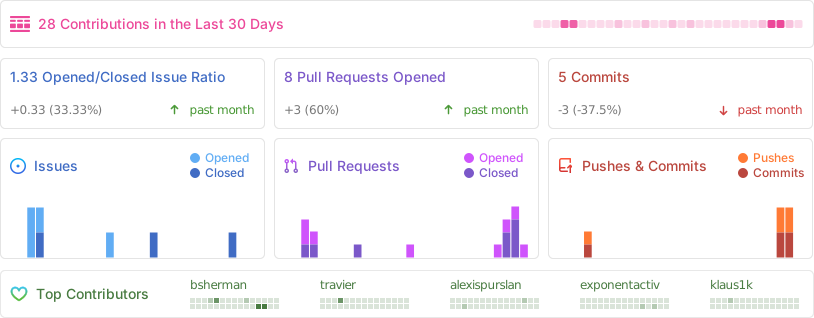
Metrics