 be7354ed19
* update logic to add gitlab

* add new env for gitlab token

* exit if no token is found

* add gitlab clone logic

* update info message

* update logging

* add support for bitbucket

* update changelog

* update teams users for bitbucket

* add gitlab namespace

* update change log
ghorg



ghorg allows you to quickly clone all of an orgs, or users repos into a single directory. This can be useful in many situations including
- Searching an orgs/users codebase with ack, silver searcher, grep etc..
- Bash scripting
- Creating backups
- Onboarding
- Performing Audits
When running ghorg a second time, all local changes in your *_ghorg directory will be overwritten by whats on GitHub. If you are working out of this directory, make sure you rename it before running a second time otherwise all of you changes will be lost.
Supported Providers
- github
- gitlab
- bitbucket (see bitbucket setup)
The terminology used in ghorg is that of GitHub, mainly orgs/repos. GitLab and BitBucket use different terminology. There is a handy chart thanks to GitLab that translates terminology here
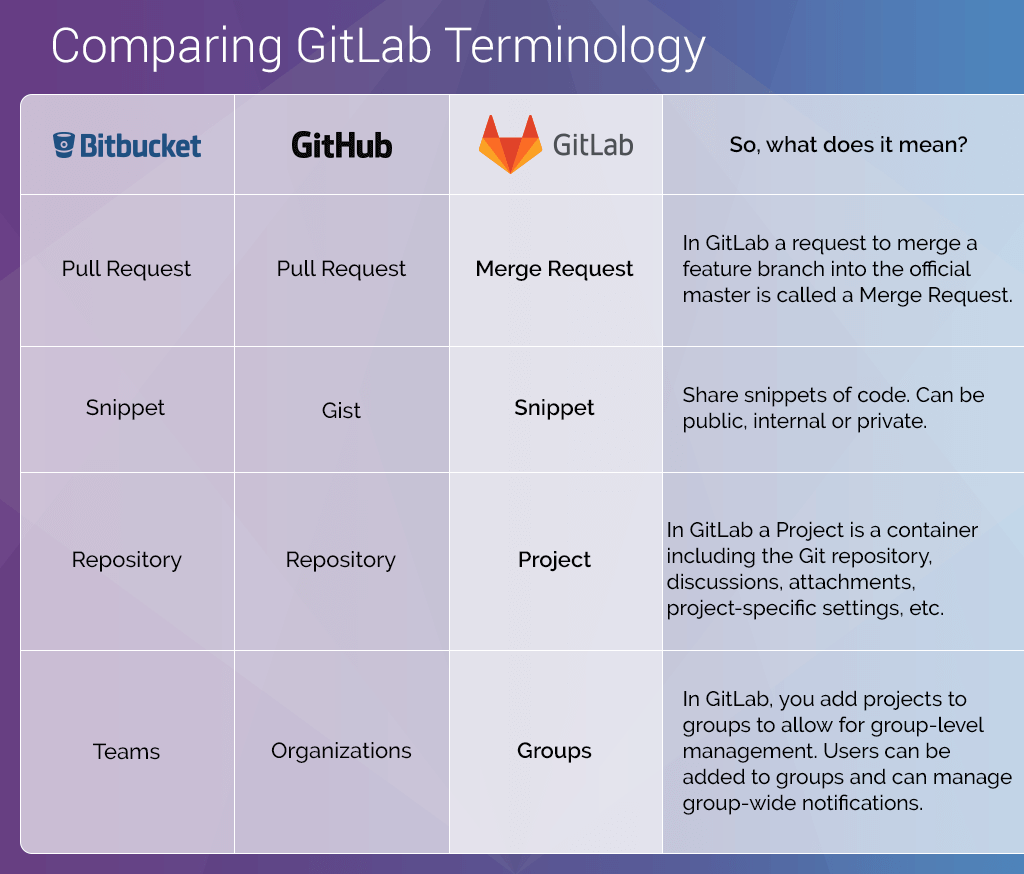
Setup
Homebrew
optional
$ brew update
$ brew upgrade git
required
$ brew install gabrie30/utils/ghorg
$ mkdir -p $HOME/ghorg
$ curl https://raw.githubusercontent.com/gabrie30/ghorg/master/sample-conf.yaml > $HOME/ghorg/conf.yaml
Golang
$ go get -u github.com/gabrie30/ghorg
$ cd $HOME/go/src/github.com/gabrie30/ghorg
$ make install
# Update conf if neeed
$ vi ~/ghorg/conf.yaml
$ go install
Use
$ ghorg clone someorg
$ ghorg clone someuser --clone-type=user --protocol=ssh --branch=develop
$ ghorg clone gitlab-org --scm=gitlab --namespace=gitlab-org/security-products
$ ghorg clone --help
ghorg defaults to master branch however, for gitflows you can run on develop by setting GHORG_BRANCH=develop or similar
Configuration
Configuration can be set in two ways. The first is in $HOME/ghorg/conf.yaml. This file will be created from the sample-conf.yaml and copied into $HOME/ghorg/conf.yaml. The second is setting flags via the cli, run $ ghorg clone --help for a list of flags
Default GitHub/GitLab Token Used
$ security find-internet-password -s github.com  | grep "acct" | awk -F\" '{ print $4 }'
$ security find-internet-password -s gitlab.com  | grep "acct" | awk -F\" '{ print $4 }'
If running this does not return the correct key you will need to generate a token via GithHub/GitLab and add it to your $HOME/ghorg/conf.yaml, or see Troubleshooting section below.
To view all other default environment variables see sample-conf.yaml
Auth through SSO
- If org is behind SSO a normal token will not work. You will need to add SSO to the Github token
Known issues
- When cloning if you see something like
Username for 'https://gitlab.com':the command won't finish. I haven't been able to identify the reason for this occuring. The fix for this is to make sure your token is in the osxkeychain. See the troubleshooting section for how to set this up.
BitBucket Setup
To configure with bitbucket you will need to create a new app password and update your $HOME/ghorg/conf.yaml to use those values or set the command line args.
Troubleshooting
- Make sure your
$ git --versionis >= 2.19.0 - You may need to increase your ulimits if cloning a large org
- If cloning via HTTPS make sure the osxkeychain has your github access token. This can be determined by running the
securitycommand above.- If this command does not return anything either switch to cloning via ssh (update your
$HOME/ghorg/conf.yaml) or set it up by following this GitHub Documentation. For GitHub tokens you will need to set your token as your username and set nothing as the password when prompted. For GitLab you will need to set your token for both the username and password when prompted. This will correctly store your credentials in the keychain. - If your GitHub account is behind 2fa follow this StackOverflow Post or this Github Documentation as noted in comments be sure to use your token as your username and give a blank password.
- If this command does not return anything either switch to cloning via ssh (update your